 Product Updates
Introducing SwapFlow Studio: Your All-in-One Video Production Suite
11 integrated tools that take content from AI generation to published post without leaving the platform
Introducing SwapFlow Studio: Your All-in-One Video Production Suite
Content creation in 2026 typically involves a fragmented workflow: generate AI content in one tool, edit it in another, add music from a third, create captions in a fourth, and finally copy everything into each social media platform individually. Every handoff between tools introduces friction --- file exports, format conversions, re-uploads, and the constant context switching that drains creative energy.
SwapFlow Studio eliminates that fragmentation. It is a complete video production suite built directly into the SwapFlow platform, offering 11 integrated tools that cover every step from raw AI-generated content to published social media post. Nothing leaves the platform. Nothing gets lost in translation between tools.
This post walks through every Studio tool, explains how they connect, and demonstrates the end-to-end workflow that makes Studio a fundamentally different approach to content production.
The 11 Studio Tools
1. Video Editor
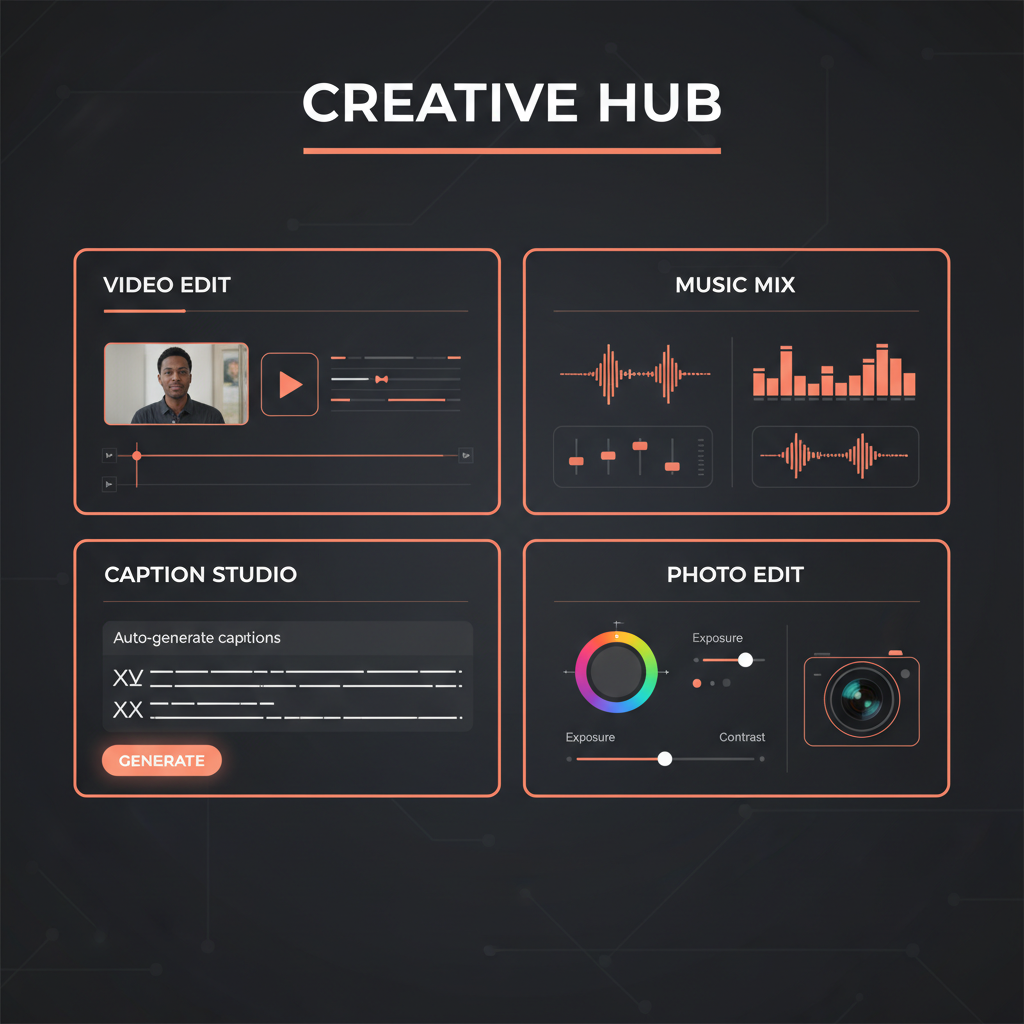
The Video Editor is Studio's centerpiece. It provides a full timeline editing environment with three core components:
- Timeline: Multi-track timeline for arranging video clips, audio layers, and overlay elements. Creators can trim, split, reorder, and layer content with precision.
- Toolbar: Quick-access tools for common editing operations --- cut, copy, paste, undo/redo, zoom, and snap-to-grid alignment.
- Properties panel: Contextual settings for the selected element. Adjust clip duration, opacity, position, scale, rotation, and transition effects.
- Export: Render the final video in formats optimized for specific platforms, with preset options for Instagram Reels, TikTok, YouTube Shorts, and standard landscape video.
The Video Editor is designed for the 80% of editing tasks that content creators perform regularly. It is not competing with Premiere Pro or DaVinci Resolve for complex film editing --- it is purpose-built for the social media content workflow where speed and simplicity matter more than unlimited flexibility.
What makes the Video Editor powerful within Studio is its integration with every other tool. AI-generated video from SwapFlow's Create module drops directly into the timeline. Voiceovers generated in the Voiceover tool appear as audio tracks. Captions flow in automatically. Nothing needs to be exported, converted, or re-imported.
2. Photo Editor
Not every piece of content is video. The Photo Editor provides image manipulation capabilities for creators working with AI-generated images, screenshots, product photos, or any visual asset.
Key capabilities include:
- Crop, resize, and rotate
- Brightness, contrast, and saturation adjustment
- Filter application
- Text overlay
- Layer management for composite images
The Photo Editor bridges the gap between raw AI-generated images and publish-ready social media visuals. A creator can generate an image using any of SwapFlow's 27+ image models, open it directly in the Photo Editor, make adjustments, add text or branding elements, and send it to Compose Post --- all without leaving Studio.
3. Captions
The Captions tool auto-generates captions from video audio using speech-to-text technology. Accurate, timed captions are no longer optional for social media content --- platforms prioritize captioned content in their algorithms, and the majority of mobile viewers watch video with sound off.
The Captions tool provides:
- Automatic transcription: Speech-to-text processing of video audio tracks
- Timing alignment: Captions synchronized to spoken words with accurate start and end times
- Style customization: Font, size, color, position, and background styling for captions
- Manual editing: Full text editing for correcting transcription errors or adjusting wording
- Multi-language support: Caption generation in multiple languages
Generated captions integrate directly into the Video Editor timeline as an overlay track, appearing in the exported video as burned-in text.
4. Subtitles
While Captions focuses on auto-generation from audio, the Subtitles tool provides a broader subtitle management system. Creators can:
- Import existing subtitle files (SRT, VTT formats)
- Create subtitles manually with precise timing control
- Translate existing subtitles into additional languages
- Export subtitles as standalone files for platforms that support separate subtitle tracks
- Manage multiple subtitle tracks for multilingual content
The distinction between Captions and Subtitles is intentional. Captions handles the common workflow of "generate text from audio." Subtitles handles the broader workflow of "manage and control all text overlays on video content."
5. Music Library
Every social media video benefits from the right music. SwapFlow Studio integrates the Jamendo music library, providing access to a vast catalog of royalty-free tracks that creators can use without licensing concerns.
The Music Library offers:
- Search and browse: Find tracks by genre, mood, tempo, instrument, and duration
- Preview: Listen to tracks before adding them to a project
- Filtering: Narrow results by license type, energy level, and content suitability
- Direct integration: Selected tracks are added directly to the Video Editor timeline
Having music selection built into the editing environment eliminates the common workflow of searching for music on an external site, downloading it, and importing it into the editor. The entire process happens in-context.
6. Music Overlay
The Music Overlay tool handles the technical aspects of combining music with other audio content. Adding background music to a video that already has voiceover or dialogue requires careful audio balancing.
Music Overlay provides:
- Volume control: Set music volume relative to primary audio (voiceover, dialogue)
- Ducking: Automatically lower music volume when speech is detected, raising it during pauses
- Fade in/out: Smooth transitions at the beginning and end of music tracks
- Timing control: Set exactly where music starts and stops relative to video content
- Multiple layers: Combine multiple music tracks or sound effects
This tool is where raw elements become a polished audio mix. A creator who has generated a voiceover, selected background music, and edited a video can use Music Overlay to blend everything into a professional-sounding final mix.
7. Voiceover
The Voiceover tool connects SwapFlow's TTS models directly into the Studio workflow. Creators can generate voiceovers without leaving the editing environment.
The workflow:
- Write or paste the voiceover script
- Select a TTS model (ElevenLabs Dialogue V3, Multilingual V2, Turbo 2.5, Minimax Speech 2.8, or Qwen3-TTS)
- Choose a voice
- Generate the audio
- Preview against the video timeline
- Adjust and regenerate if needed
- Add to the timeline as an audio track
The Voiceover tool's integration with the Video Editor means creators can see exactly how their voiceover aligns with visual content in real time. No exporting audio, importing into a separate editor, and re-exporting --- the feedback loop is immediate.
8. Slides
Not all content starts with video. The Slides tool allows creators to build slide-based content directly in Studio --- perfect for educational content, listicles, step-by-step guides, and presentation-style social media posts.
Slides supports:
- Template selection: Pre-designed layouts for common content formats
- Text and image placement: Drag-and-drop positioning of elements on each slide
- Transition effects: Animated transitions between slides
- Timing control: Set duration for each slide
- Export as video: Convert the slide deck into a video file for social media posting
Slide-based content performs exceptionally well on platforms like Instagram Carousel, LinkedIn, and TikTok (as short-form video). The Slides tool makes it possible to produce this content format without PowerPoint, Canva, or other external tools.
9. Compose Post
Compose Post is where content meets distribution. This tool provides a multi-platform composition interface that lets creators write and preview posts for multiple social media platforms simultaneously.
Key features include:
- Multi-platform preview: See how a post will appear on Instagram, TikTok, YouTube, X, Facebook, LinkedIn, and other connected platforms
- Platform-specific adaptation: Adjust text length, hashtags, and formatting for each platform's requirements and best practices
- Media attachment: Attach videos, images, or slide content created in Studio
- Scheduling: Set publication date and time for future posting
- Character count and validation: Real-time feedback on platform-specific character limits and content requirements
Compose Post transforms Studio from a creation tool into a publishing tool. Content moves directly from the editor to the social media post without downloading, re-uploading, or switching to a separate scheduling tool.
10. Draft Posts
Creative work is rarely linear. The Draft Posts tool provides a management system for work in progress, allowing creators to:
- Save posts at any stage of completion
- Organize drafts by platform, campaign, or content type
- Return to drafts and continue editing where they left off
- Preview draft posts before moving to final publication
- Manage a content calendar of upcoming posts
Draft Posts serves as the organizational backbone of a content operation. For creators producing content in batches --- writing and scheduling a week's worth of posts in a single session --- the draft system keeps everything organized and accessible.
11. Finished Posts
Finished Posts provides a historical record of all published content. Creators can:
- Review previously published posts
- Track publication dates and platforms
- Reuse or repurpose past content
- Maintain a portfolio of published work
- Analyze content patterns over time
Having a complete archive of published content within the same platform where new content is created makes repurposing and reference easy. A creator can revisit a successful post from three months ago, understand what worked, and create new content informed by that history.
How Studio Connects to Create and Publish
SwapFlow's three core modules --- Create, Studio, and Publish --- form a complete content pipeline.
Create: AI Generation
Create is where raw content originates. Using SwapFlow's library of AI models, creators generate:
- Videos (text-to-video, image-to-video, video-to-video)
- Images (text-to-image, image-to-image)
- Audio (text-to-speech, voice cloning)
Generated content is stored in the creator's media library and is immediately available in Studio.
Studio: Production and Editing
Studio takes raw generated content and transforms it into publish-ready material. This is where editing, music, voiceover, captions, and composition happen. Studio's 11 tools cover the full production workflow.
Publish: Distribution
Publish handles the final step --- sending finished content to connected social media platforms. SwapFlow supports scheduling, multi-platform posting, and post management across all major social networks.
The critical point is that these three modules share the same media library, the same project context, and the same platform. Content flows between them without exports, imports, or format conversions.
The End-to-End Workflow
To illustrate how Studio works in practice, here is a complete workflow from concept to published post:
Step 1: Generate AI Video
In Create, a creator generates a 10-second product showcase video using Kling 2.6, providing a product image as reference and a text prompt describing the desired scene.
Step 2: Edit in Studio
The generated video opens in Studio's Video Editor. The creator trims the first second (model warm-up frames), adjusts color settings in the properties panel, and adds a 1-second fade-in.
Step 3: Add Music
Using the Music Library, the creator searches for upbeat, energetic tracks under 15 seconds. They preview three options and select one. The Music Overlay tool sets the volume to 30% of primary audio, adds a fade-in over the first 2 seconds and fade-out over the last 3 seconds.
Step 4: Add Voiceover
The creator writes a 8-second script in the Voiceover tool, generates it using ElevenLabs Turbo 2.5, and aligns it to start at the 2-second mark in the timeline.
Step 5: Generate Captions
The Captions tool processes the video's audio (now including the voiceover) and generates timed captions. The creator adjusts the font to match their brand style and positions captions in the lower third of the frame.
Step 6: Compose Post
In Compose Post, the creator writes platform-specific captions for Instagram Reels, TikTok, and YouTube Shorts. They attach the finished video, add relevant hashtags, and preview how the post will appear on each platform.
Step 7: Schedule and Publish
The creator schedules the post for optimal engagement times on each platform --- 12 PM for Instagram, 6 PM for TikTok, and 3 PM for YouTube --- and confirms. SwapFlow handles the rest.
Total time: under 20 minutes from concept to scheduled multi-platform post.
Who Studio Is Built For
Solo Creators
Individual creators benefit from having everything in one place. No subscription fees for five separate tools. No learning curve for five different interfaces. Studio consolidates the workflow into a single environment designed specifically for social media content.
Small Teams and Agencies
Teams benefit from Studio's shared workspace capabilities. Multiple team members can access the same media library, draft posts, and publishing schedule. The Draft Posts and Finished Posts tools provide visibility into the team's content pipeline.
Brands and Businesses
Brands need consistency --- in visual style, voice, posting cadence, and cross-platform presence. Studio's integrated approach makes consistency easier to maintain because every element of content production happens in the same controlled environment.
Getting Started with Studio
SwapFlow Studio is available to all SwapFlow users. The tools are accessible from the Studio section of the dashboard, with generated content from Create automatically available in the media library.
For creators currently juggling multiple tools, the transition to Studio means fewer subscriptions, fewer exports, fewer format headaches, and more time spent on the creative work that actually matters.